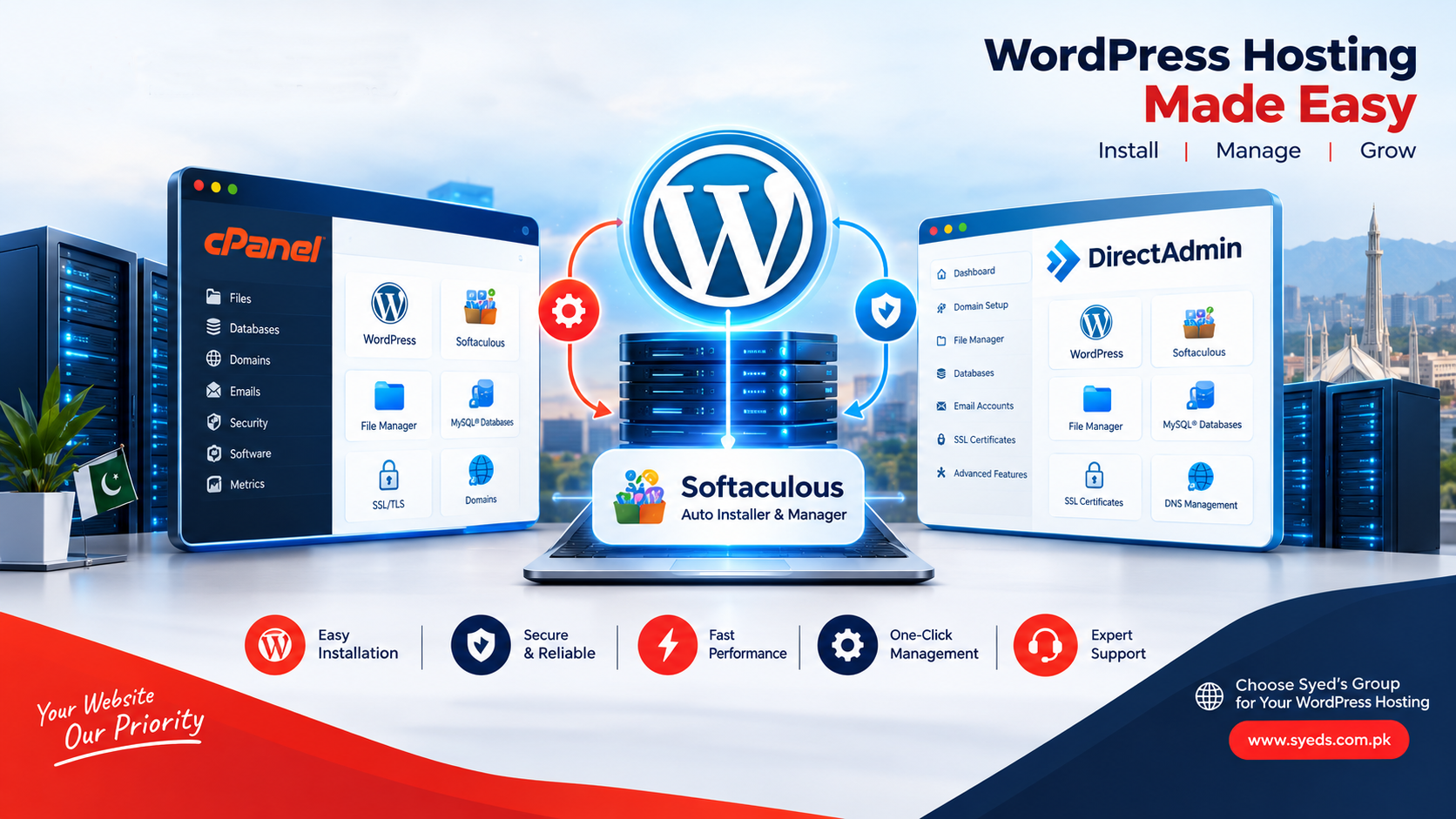
How to Install WordPress on cPanel and DirectAdmin – Complete Step-by-Step Guide
WordPress is one of the world's most popular content management systems (CMS), powering business websites, blogs, corporate websites, online stores and many other types of websites.
Installing WordPress is simple when you use a modern hosting control panel such as cPanel or DirectAdmin. With Softaculous, you can install WordPress without manually uploading files, creating databases or configuring complicated server settings.
Syed's Group provides WordPress-friendly hosting with cPanel and DirectAdmin options, allowing you to install and manage WordPress easily.
What You Need Before Installing WordPress
Before installing WordPress, make sure you have the following:
- A registered domain name
- Active web hosting
- Access to cPanel or DirectAdmin
- SSL certificate for HTTPS
- PHP and MySQL/MariaDB support
- Sufficient website storage
- A reliable hosting provider
- A WordPress-compatible hosting environment
If you are starting a new website, you can explore Syed's Group Website Hosting for business and WordPress websites.
How to Install WordPress on cPanel
cPanel is one of the most widely used web hosting control panels. When Softaculous is enabled, WordPress can normally be installed with only a few steps.
Step 1: Log in to cPanel
Open your hosting provider's cPanel login page and sign in using your hosting username and password.
The cPanel dashboard provides access to important hosting functions including files, domains, email accounts, databases, SSL, security and software installation.
Step 2: Open Softaculous Apps Installer
Look for Softaculous Apps Installer in your cPanel dashboard. It is commonly located under the Software section.
Click Softaculous Apps Installer to open the application installer.
Step 3: Select WordPress
Search for WordPress inside Softaculous and open the WordPress installation page.
Click Install Now to begin configuring your WordPress installation.
Step 4: Select Your Domain
Select the domain where you want to install WordPress.
If you want WordPress to load directly from:
example.com
leave the Directory field empty.
If you enter wp as the directory, WordPress may instead be installed at:
example.com/wp
Step 5: Select HTTPS
If SSL is already active, select https:// when configuring the WordPress installation.
HTTPS provides an encrypted connection between your website and visitors and is recommended for modern WordPress websites.
Step 6: Enter Website Information
Softaculous will ask for basic WordPress information such as:
- Site Name
- Site Description
- Admin Username
- Admin Password
- Admin Email
Use a strong administrator password and avoid predictable usernames such as admin.
Step 7: Select WordPress Version
Softaculous normally provides the available WordPress version supported by your hosting environment.
Whenever possible, select the latest stable WordPress version recommended by the installer.
Step 8: Choose a Theme
Softaculous may provide optional themes during installation. You can install a theme during the setup process or install one later from the WordPress dashboard.
Step 9: Install WordPress
Review your configuration and click Install.
Softaculous will automatically create the WordPress files, database and required configuration.
After installation, you can normally access the WordPress administration area through:
yourdomain.com/wp-admin
How to Install WordPress on DirectAdmin
DirectAdmin is another popular web hosting control panel. When Softaculous is available, WordPress installation on DirectAdmin is very similar to the cPanel process.
Step 1: Log in to DirectAdmin
Open your DirectAdmin login page and enter your hosting username and password.
From the DirectAdmin dashboard, you can manage domains, websites, files, databases, email accounts, SSL certificates and other hosting services.
Step 2: Open Softaculous
Look for Softaculous Apps Installer in your DirectAdmin control panel.
The exact location may vary depending on your DirectAdmin theme and hosting configuration.
Step 3: Select WordPress
Search for WordPress in Softaculous and click Install Now.
Step 4: Select Your Domain
Select the domain where you want WordPress installed.
For a main-domain installation, leave the directory field blank.
For example:
example.com
If you enter blog, the installation may become:
example.com/blog
Step 5: Configure HTTPS
If your SSL certificate is active, select HTTPS for your WordPress website.
Step 6: Configure WordPress
Enter your:
- Website Name
- Website Description
- Administrator Username
- Administrator Password
- Administrator Email
Use a unique administrator username and a strong password.
Step 7: Configure Optional Settings
Depending on your Softaculous installation, you may be able to configure WordPress version, database name, table prefix, automatic backups, themes and plugins.
For most users, the default settings are sufficient.
Step 8: Install WordPress
Click Install and wait for Softaculous to complete the installation.
After installation, access your WordPress dashboard through:
example.com/wp-admin
What Is Softaculous?
Softaculous is an application installer commonly integrated with web hosting control panels such as cPanel and DirectAdmin.
Instead of manually downloading WordPress, uploading files, creating a database and configuring WordPress, Softaculous automates many of these steps.
This makes WordPress installation easier for beginners, businesses and website owners.
Softaculous WordPress Management Features
Depending on the hosting provider and Softaculous configuration, you can use Softaculous to perform several WordPress management tasks:
- Install WordPress
- Remove WordPress
- Upgrade WordPress
- Create WordPress backups
- Restore backups
- Clone WordPress websites
- Create staging websites
- Manage plugins
- Manage themes
- View installation information
How to Manage WordPress with Softaculous
After installing WordPress, open Softaculous → WordPress → All Installations.
Your WordPress website should appear in the list. Depending on your hosting configuration, several management options may be available.
Update WordPress
Keep WordPress updated to receive security improvements, bug fixes and compatibility improvements.
Backup WordPress
Create a backup before making major WordPress changes, installing significant plugins or performing major updates.
Restore WordPress
If a problem occurs after an update or configuration change, a suitable backup can help you restore your website.
Clone WordPress
WordPress cloning can be useful when you need to create a copy of an existing website for development or testing.
Staging WordPress
If staging is supported by your hosting environment, you can test WordPress updates and website changes before applying them to the live website.
Manage Plugins and Themes
Some Softaculous configurations allow you to manage WordPress plugins and themes directly from the hosting control panel.
cPanel vs DirectAdmin for WordPress Hosting
| Feature | cPanel | DirectAdmin |
|---|---|---|
| WordPress Hosting | Yes | Yes |
| Softaculous | Available when enabled | Available when enabled |
| WordPress Installation | Easy | Easy |
| File Manager | Yes | Yes |
| Database Management | Yes | Yes |
| Email Management | Yes | Yes |
| SSL Management | Yes | Yes |
| Domain Management | Yes | Yes |
| DNS Management | Yes | Yes |
| Suitable for Beginners | Excellent | Excellent |
Both cPanel and DirectAdmin can provide a powerful environment for WordPress websites. Your choice can depend on your hosting provider, available resources, features and personal preference.
Syed's Group WordPress Hosting
If you want an easy-to-manage WordPress hosting environment, Syed's Group provides hosting solutions with cPanel and DirectAdmin options.
You can manage your WordPress website, domain, email accounts, SSL, databases and website files through the hosting control panel.
For business websites and WordPress websites, explore Syed's Group Website Hosting.
For businesses managing multiple websites or requiring additional hosting resources, explore Syed's Group All-in-One Hosting.
For WooCommerce websites and online stores, explore Syed's Group E-Commerce Hosting.
For websites requiring higher resources, explore Syed's Group Dedicated Hosting.
Syed's Group Hosting Packages Comparison
Syed's Group provides different hosting packages for different website requirements. The following comparison helps you identify a suitable package for WordPress, business websites, WooCommerce stores and higher-resource websites.
| Hosting Package | Price | Storage | Bandwidth | Best For | |
|---|---|---|---|---|---|
| Business Website Hosting | Rs. 2,999/year | 2 GB | 20 | 20 GB | Small business and starter WordPress websites |
| E-Commerce Hosting | Rs. 4,999/year | 2 GB | 20 | 100 GB | WooCommerce and online stores |
| All-in-One Hosting | Rs. 7,999/year | 5 GB | 100 | 100 GB | Growing businesses and multiple websites |
| Dedicated Hosting | Rs. 9,999/year | 10 GB | 500 | 1000 GB | Higher-resource business websites |
Which Syed's Group Hosting Package Is Best for WordPress?
Business Website Hosting
Business Website Hosting can be suitable for small corporate websites, portfolios, blogs, startup websites and basic WordPress websites.
E-Commerce Hosting
If you are planning to run WooCommerce or an online store, E-Commerce Hosting provides additional bandwidth and is positioned for e-commerce requirements.
All-in-One Hosting
All-in-One Hosting provides more storage and email accounts and can be suitable for growing businesses and customers who need to manage multiple websites.
Dedicated Hosting
Dedicated Hosting provides higher storage, email capacity and bandwidth and can be considered for websites with greater hosting requirements.
Why Choose Syed's Group for WordPress Hosting?
The right hosting environment can influence website speed, reliability, security and the overall visitor experience.
Syed's Group provides hosting solutions designed to make website management easier through hosting control panels, SSL, application installation and different hosting options.
- WordPress-friendly hosting environment
- cPanel and DirectAdmin hosting options
- Easy application installation through Softaculous where enabled
- SSL support
- Business hosting solutions
- WooCommerce hosting options
- Multiple hosting packages
- Options for higher-resource websites
WordPress Hosting Best Practices
1. Enable SSL
Always use HTTPS for your WordPress website.
2. Keep WordPress Updated
Regularly update WordPress, themes and plugins.
3. Use Trusted Plugins
Install plugins from reputable sources and remove plugins that you no longer need.
4. Create Regular Backups
Maintain reliable backups of your website files and database.
5. Use Strong Passwords
Use unique passwords for WordPress, hosting accounts, databases and email accounts.
6. Optimize Images
Compress and properly size images before uploading them to your WordPress website.
7. Use Caching
A suitable caching solution can improve WordPress performance and reduce server workload.
8. Optimize Your Database
Remove unnecessary data, spam comments and unused plugins where appropriate.
9. Monitor Website Security
Regularly review your WordPress installation, plugins, themes and hosting security.
10. Optimize WordPress for Search Engines
Use descriptive titles, optimized headings, internal links, useful content, schema markup and properly configured metadata.
WordPress SEO, AIO, GEO and AEO Optimization
A technically correct WordPress installation is only the beginning. Modern websites should also be optimized for traditional search engines and AI-powered search systems.
- Create useful and original content
- Use clear H1, H2 and H3 headings
- Answer common questions directly
- Use FAQ content where appropriate
- Implement relevant structured data
- Optimize title tags and meta descriptions
- Create relevant internal links
- Maintain fast page loading
- Use mobile-friendly website designs
- Keep WordPress and plugins updated
- Create clear service and product pages
- Use natural keyword variations
- Include relevant geographic information
- Maintain consistent business information
Frequently Asked Questions About WordPress Hosting
Can I install WordPress on cPanel?
Yes. WordPress can be installed on cPanel using Softaculous when Softaculous is enabled by the hosting provider.
Can I install WordPress on DirectAdmin?
Yes. WordPress can be installed on DirectAdmin, including through Softaculous when Softaculous is available.
Do I need technical knowledge to install WordPress?
No. Softaculous simplifies WordPress installation and eliminates many manual installation steps.
What is Softaculous used for?
Softaculous is an application installer and management platform that simplifies the installation and management of applications such as WordPress.
Can I manage WordPress from cPanel?
Yes. cPanel provides tools for managing files, databases, domains, SSL, email and other components required by WordPress. WordPress itself is normally managed through the WordPress dashboard.
Can I manage WordPress from DirectAdmin?
Yes. DirectAdmin provides hosting management tools, while WordPress can be administered through its own WordPress dashboard.
Which is better for WordPress: cPanel or DirectAdmin?
Both can provide an excellent WordPress hosting environment. The better option depends on your hosting provider, resources, features, pricing and preferred control panel.
Can I host WooCommerce on Syed's Group hosting?
Yes. Syed's Group provides an E-Commerce Hosting package designed for online stores and e-commerce websites.
Is SSL included with Syed's Group hosting?
Syed's published hosting packages include SSL as part of the listed hosting features.
Which Syed's Group hosting package should I choose for WordPress?
For a small business website, Business Website Hosting may be suitable. WooCommerce users can consider E-Commerce Hosting, growing businesses can consider All-in-One Hosting, while websites with higher resource requirements can consider Dedicated Hosting.
Start Your WordPress Website with Syed's Group
Installing and managing WordPress can be simple when you have the right hosting environment. With cPanel or DirectAdmin and Softaculous, you can install WordPress quickly and manage your website without complicated server administration.
Syed's Group provides WordPress-friendly hosting solutions for businesses, blogs, WooCommerce stores and growing websites.
Website Hosting | E-Commerce Hosting | All-in-One Hosting | Dedicated Hosting